



















 Murcia is incredibly photogenic, and guys, it is not us who are saying that. Ask anyone who's wandered through Murcia, Cartagena, or Lorca for a day — their camera roll is ALWAYS full before lunch. It's a region that practically begs to be photographed.
But getting that same beauty into a phone photo... not always easy.
One minute you're in full sun on Plaza Cardenal Belluga, the next you're inside a market stall where everything has a yellow cast, and then you're trying to snap a dish before it gets cold. The light keeps changing, people keep moving, and your phone has to handle it all. The result doesn't always match what you actually saw.
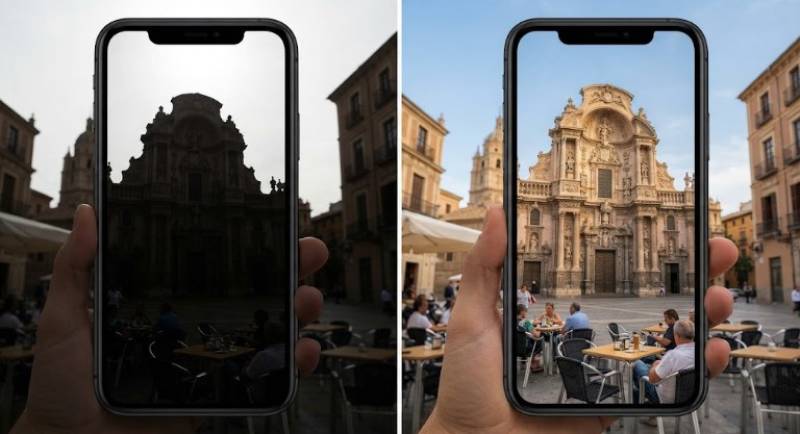
That's where most people reach for a filter. Yet filters just add a "look on top". What actually helps is restoring what was already there.
 If we're being honest, most travel photos happen in a rush, right? You're walking. It's hot, there's a crowd, you take the shot and keep going. No time to adjust anything. In Murcia, a few things tend to make that worse:
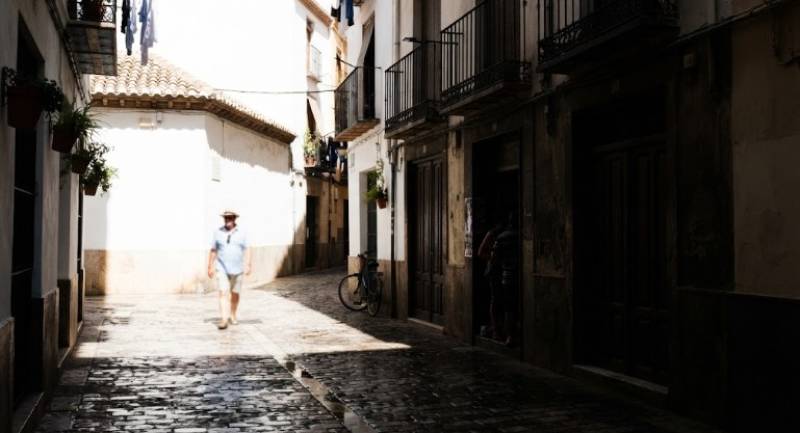
* Changing light throughout the day: A historic street in Murcia or Cartagena can have bright Mediterranean sunlight hitting one side and deep shade covering another. Without enough detail in both areas, important textures and architectural features can get lost.
* Fast-moving environments: Markets and tapas streets are active spaces. Steam from a kitchen, smoke from a grill, and movement around busy stalls can affect image sharpness.
* Small or damaged files: Travel photos are often resized when shared online. Screenshots, compressed downloads, and cropped images may not hold enough detail for larger displays.
These issues are common in other regions too. But in Murcia you really notice them because the contrast is so strong. One side of the street is in bright sun. The other is in deep shade, and the phone can't handle both. So colours wash out, textures go flat and those little details just disappear. The good thing is you don't need to re-shoot or cover it with a heavy filter — you can bring much of that original look back.
Filters add a look on top. Restoration brings back what was there.
Wink has become useful for this type of practical repair work because it focuses on cleaning and restoring rather than stylising. Wink takes a practical approach to these common travel-photo problems. Wink's image enhancer can improve colour, lighting, and clarity without requiring manual adjustments for every part of the image.
 For smaller travel photos, Wink's image upscaler can increase resolution before the image is printed or displayed at a larger size.
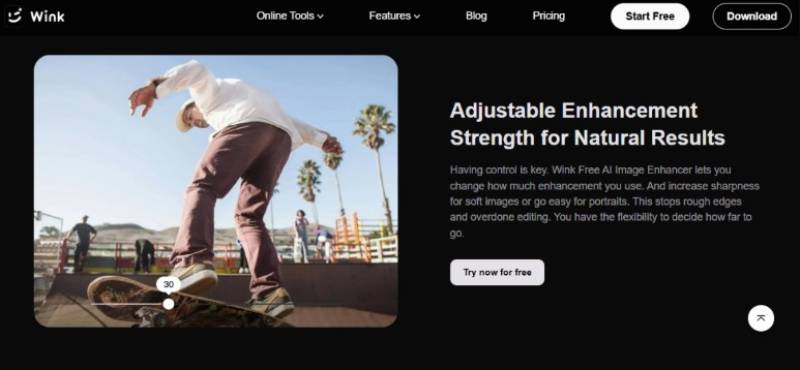
Both features allow adjustable intensity, so colour can stay honest. That matters when photographing the bright streets of Murcia, the historic buildings of Cartagena, the beaches around the Mar Menor, or the fresh produce found in local markets.
A light adjustment can bring back faded tones without making the scene look heavily edited. The goal is to keep the photo close to the place as you remember it.
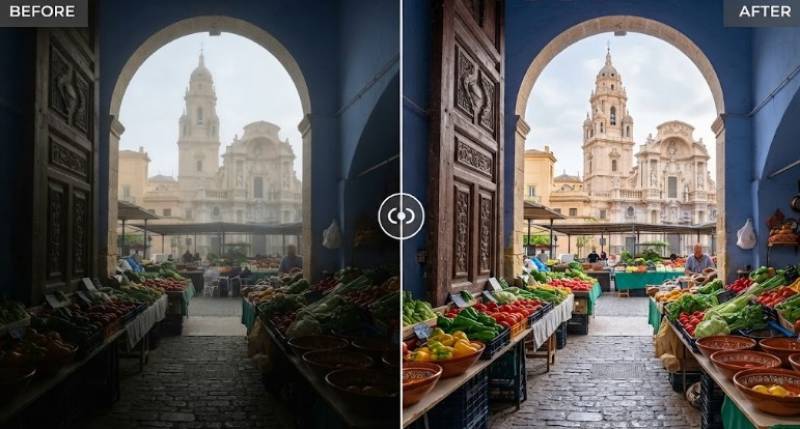 This is a short workflow used by guides, small hotels in the centro, food tour operators, and contributors filing after a morning in the markets.
Before starting, make sure to:
* Work from the original camera roll file, not a compressed copy from a chat app
* Think about where you'll use each one. A small image for social media is different from a big one for a blog or print
* Always keep the original. That way you can compare and make sure the new version actually looks better.
Start with the image's basic appearance. Indoor market shots in Murcia often look too yellow, and streets around the Cathedral often hide half the detail in shadow.
Upload the photo to Wink's AI image enhancer and focus on restoring a natural balance. The tool can improve lighting, colour, sharpness, and fine detail without requiring manual adjustments to every part of the image.
Aim for a natural look, not a dramatic one. Here in Murcia, that balance matters — you want the red of fresh peppers, the green of huerta produce, and the warm tones of local stone to read true, not neon.
 After you've corrected the colour and light, zoom in on the little things. What makes this part of Spain memorable is often the texture. Carved Cathedral stone, bright ceramics, woven esparto, old wooden doors, or a dish like zarangollo up close.
If those details look a bit fuzzy, a light second edit can make them much clearer.
Different zones across Murcia need different corrections:
* Historic facades and plazas: Lift shadows so detail under arches, carved doors, and balconies in Murcia, Cartagena or Caravaca remains visible. Restore some contrast so stone and painted facades regain their depth instead of looking washed out.
* In market interiors: Neutralise the warm cast from overhead bulbs so the greens of huerta vegetables, reds of pimentón, and colours of handmade pottery come through naturally. Reduce grain from low-light shooting and lift shadows so products deep inside the stall don’t disappear.
* Food and tapas scenes: Reduce haze slightly while keeping atmosphere. Sharpen moderately so textures of grilled meats, fresh salads, and local pastries like paparajotes remain legible. Keep skin tones natural.
* Craft close-ups: Preserve weave, glaze, and clay texture. Avoid pushing sharpness too high. Preview at 100% to keep the result document-like.
A small travel photo may look perfectly fine on a phone but lose quality when used in a blog header, printed album, or larger display.
This is where Wink's image upscaler can help. Increase the resolution of the individual photo before placing it into the final design. This gives the image more room to retain detail when enlarged.
 You might take a wide shot of a stall in Verónicas, for example, but later want to crop in on just one part — a stack of lemons, a pile of spices. If you upscale the original first, you can crop tighter without it immediately falling apart.
In the end, the best travel photos aren't the most edited ones — they're the most honest ones. Murcia's streets, markets, and food spots give you endless things to photograph. But when you're shooting on the move, bad light, motion blur, and low-res files are just part of it. That doesn't mean those photos are unusable.
A quick enhancement is usually enough to make them usable again. And if you need to bring back colour and clarity, Wink lets you fix up existing photos, without relying only on filters or learning complicated software. A few thoughtful adjustments can help bring back the natural colour, texture, and detail that made the original moment worth capturing.